
01
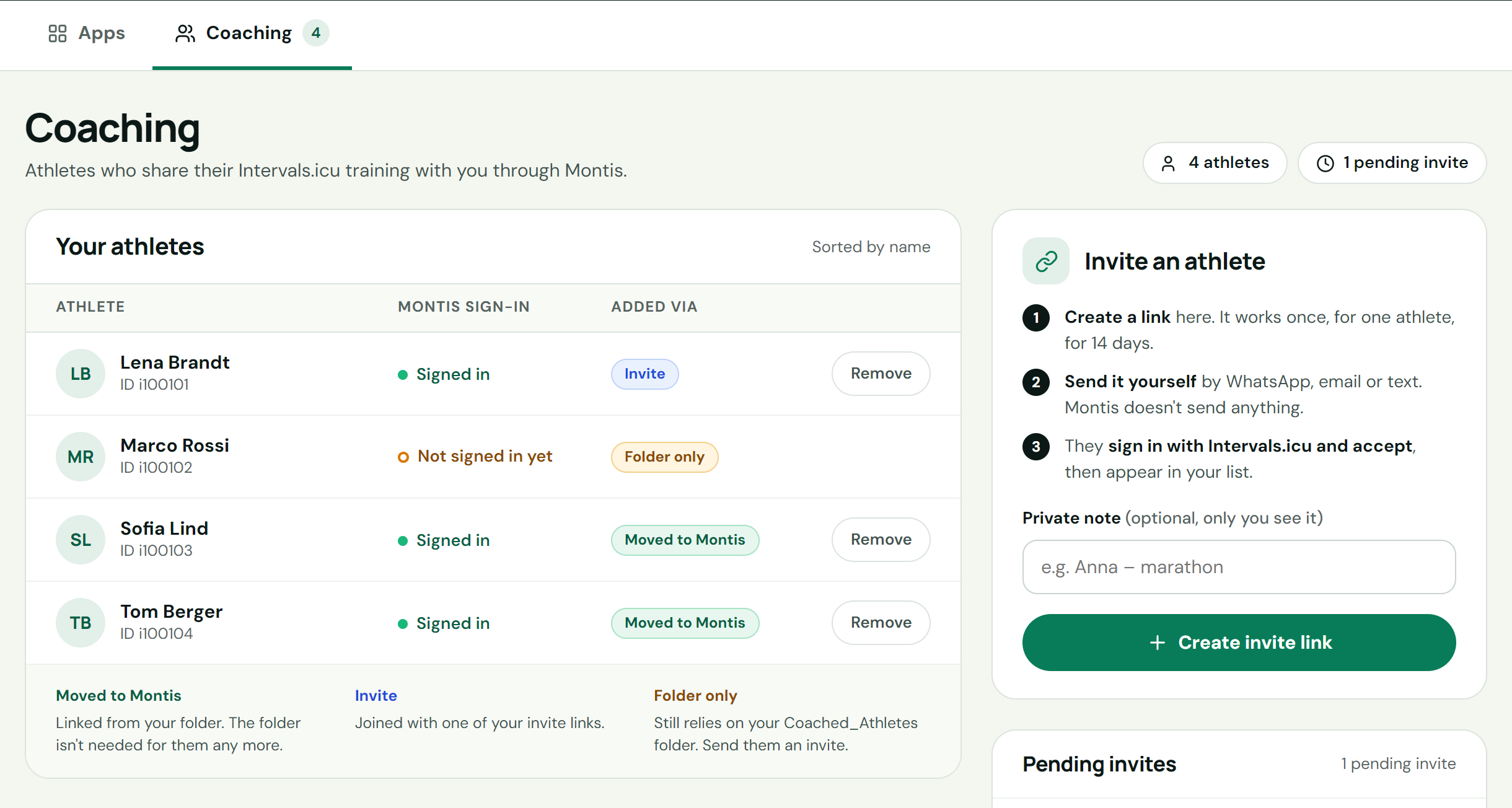
Open the Coaching tab
Coaching needs an active Montis Subscriber membership. Use the same email for it as for your Intervals.icu account. Your athletes use Montis free.
Sign in to the App Hub and open the Coaching tab.
For coaches
Invite each athlete with a one-time link. They keep their own Intervals.icu account and share it with you through Montis. You then work with their training in the Montis App, ChatGPT and Claude.
Coaching needs an active Montis Subscriber membership. Use the same email for it as for your Intervals.icu account. Your athletes use Montis free.
Sign in to the App Hub and open the Coaching tab.
Press Create invite link, then send the link yourself by WhatsApp, email or text. Montis doesn't send anything.
Each link works once, for one athlete, for 14 days. You can have up to 20 pending invites and 50 athletes.
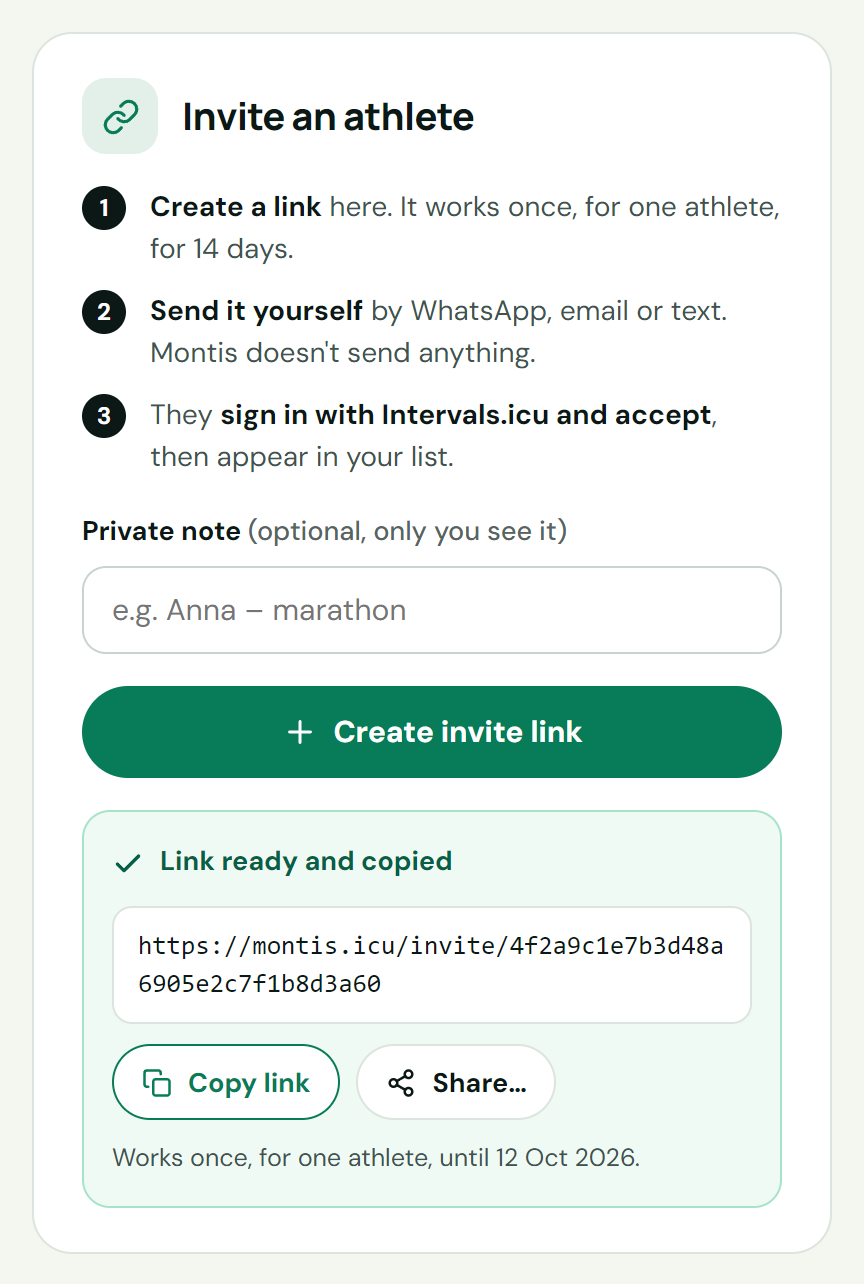
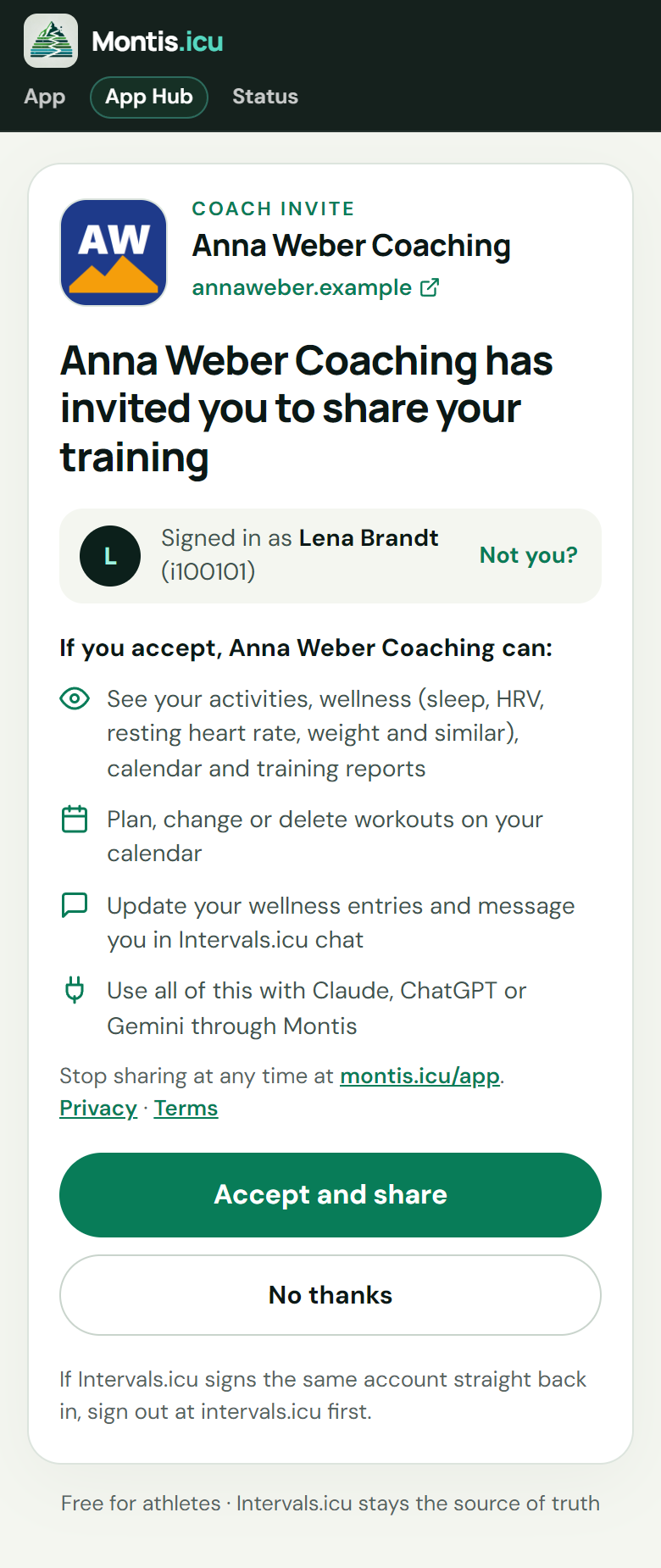
The athlete opens the link in their browser, signs in with Intervals.icu and presses Accept and share.
They see what you will be able to do before they accept, and can stop sharing at any time from their App Hub.
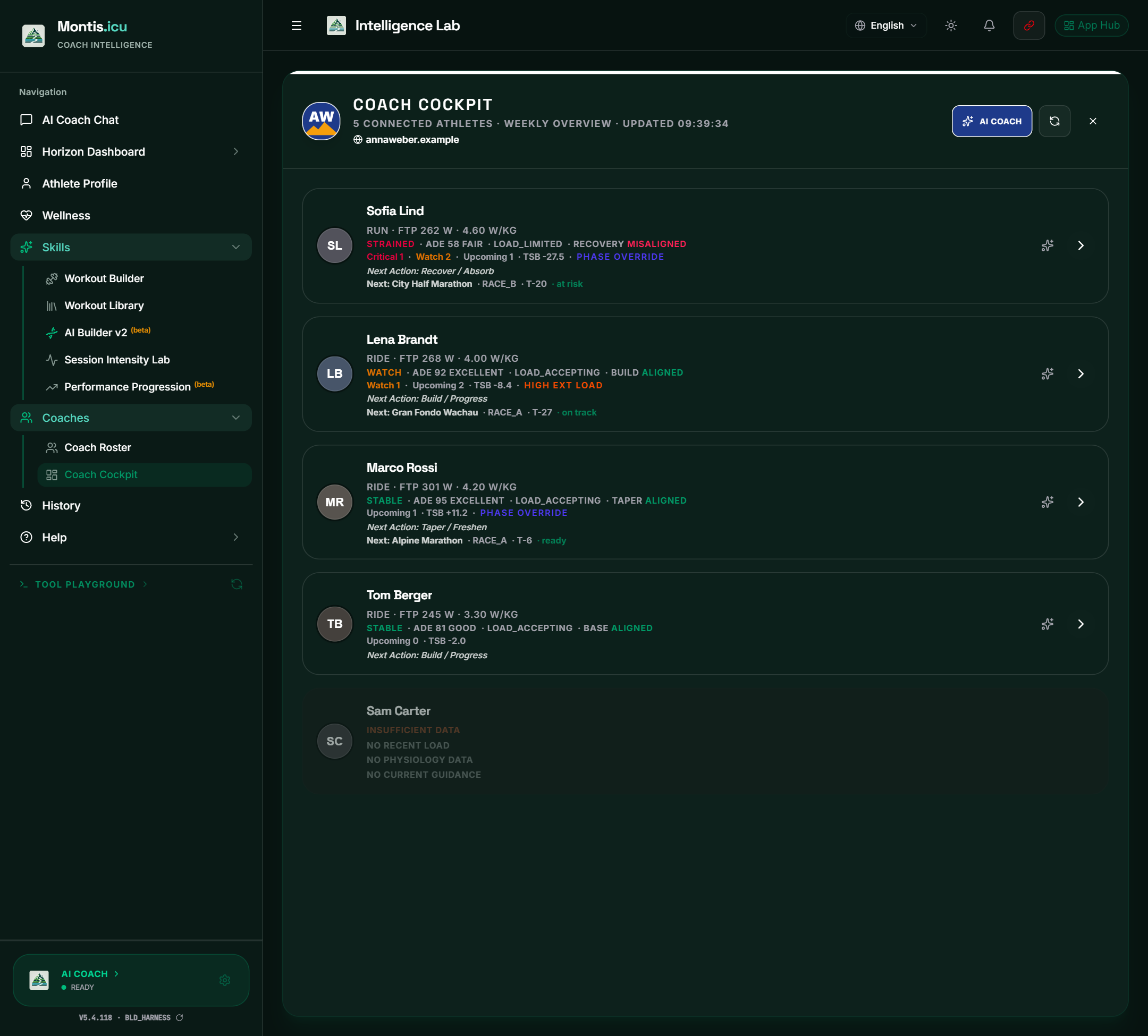
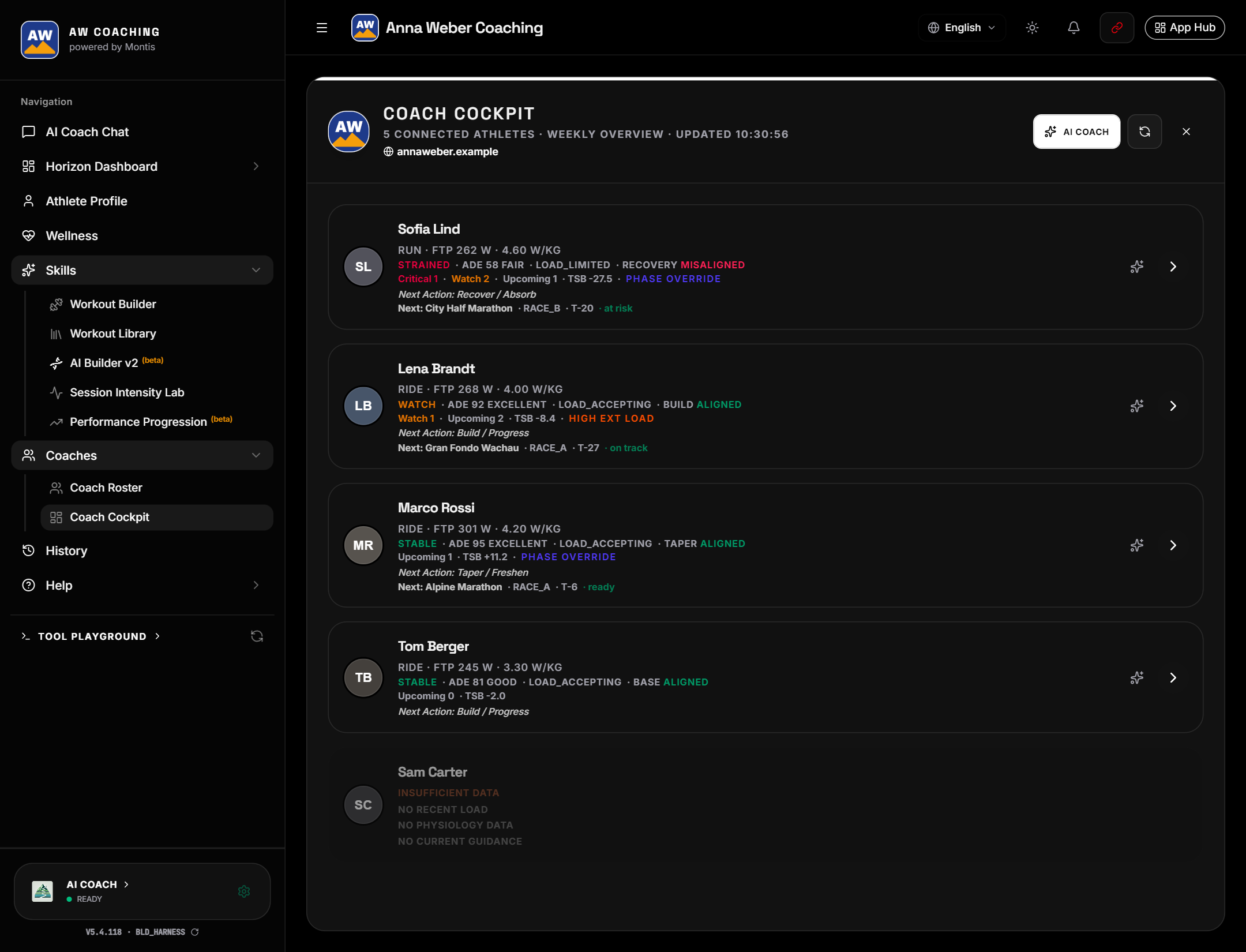
Open Coaches in the sidebar. Coach Cockpit shows every athlete's week, with the ones who need you first. The AI Coach can review the whole roster.
In Coach Roster, pick an athlete to work as them: dashboards, Readiness, the AI Builder and their calendar. Send them a weekly report or an activity analysis by email. The AI Coach asks before it changes their calendar.
On the Coaching tab, add your logo, team or club name, website and brand colour.
The black & white theme shows the Montis App in black and white, with your logo and team name, for you and your athletes.
Coaching guides
Invite links, accepting an invite, managing your athletes, branding and privacy.
Open the guide ↗Coach Cockpit, the AI roster review, the Coaching Workflow, email reports and working as an athlete.
Open the guide ↗Ask for your coached athletes, then name the athlete you want to work on. Coach Cockpit is also in Claude.
Set up ChatGPT or Claude →