Skip to content
01
Open Montis.icu Coach
For the first connection, using ChatGPT in a web browser is the
simplest route.
Open Montis and ask:
run a weekly report
ChatGPT will show a Montis sign-in prompt when the first Montis
action is called.
ChatGPT
 Select Sign in to start the Montis connection flow.
02
Connect Intervals.icu
If your shared Intervals.icu connection is missing or expired,
Montis will ask you to connect it.
Select OK — Connect Intervals.icu and approve
the requested permissions.
Intervals.icu
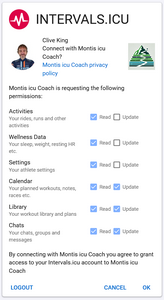 Keep the requested permissions enabled.
03
Return to ChatGPT
After authorisation, you are redirected back to ChatGPT and the
Montis connection completes.
You should see confirmation that the connection succeeded.
Connected
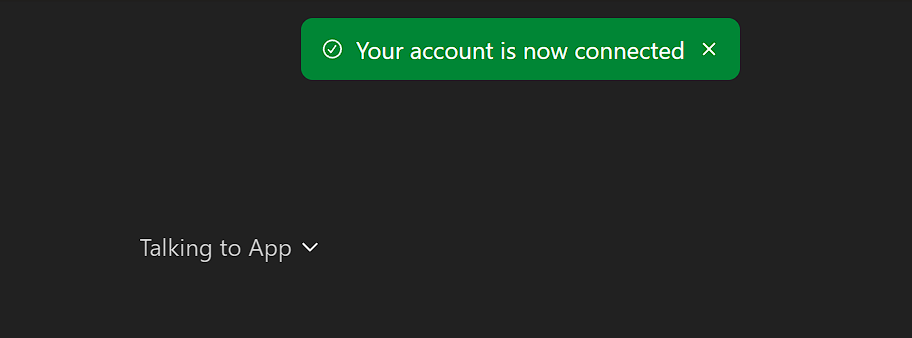 Once connected, ChatGPT can call Montis actions for your athlete.
04
Run your first report
When ChatGPT asks for permission to use the Montis action, you
can select Always allow if you do not want the
same tool confirmation on every request.
run a weekly report
Tool permission
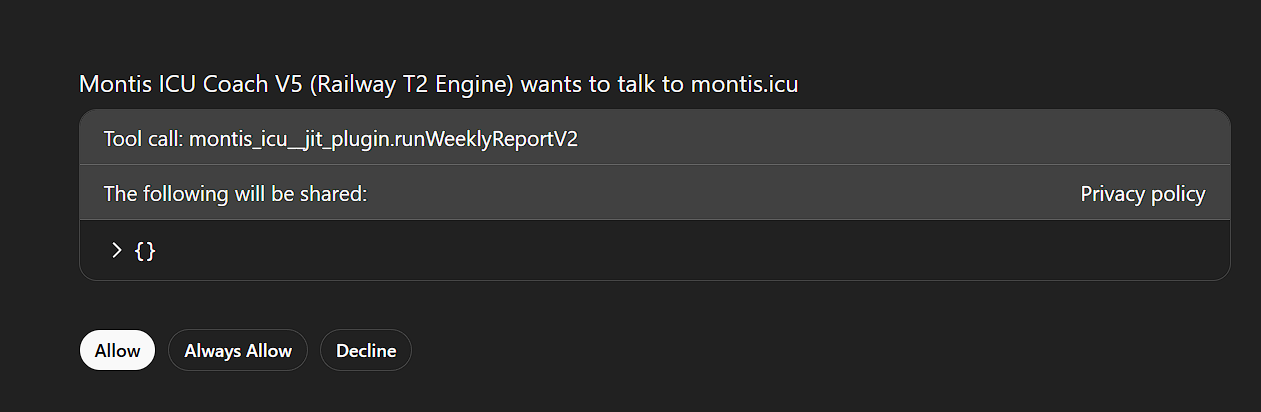 ChatGPT can now continue with the requested Montis report.
You're connected
Now put your training data to work.
Start with a report, then use Montis to question the findings,
understand what is changing and decide what should happen next.
Run a weekly report
How is my training progressing?
What should I focus on next week?