
01
Add the Montis MCP server
In Claude, open Settings → Connectors → Add custom connector. Give it a name and enter the Montis MCP URL, then click Continue.
https://montis.icu/mcp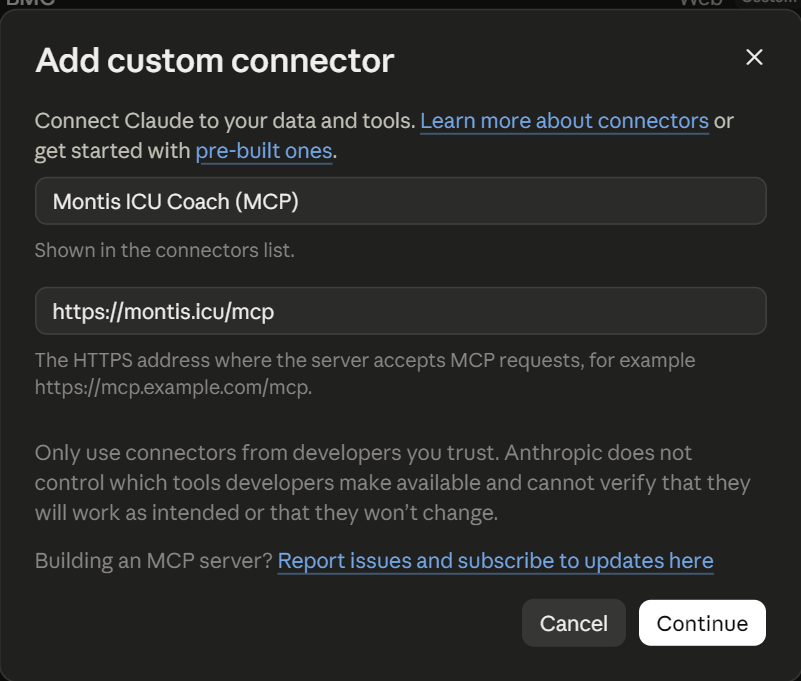
https://montis.icu/mcp.
Direct tool access
Claude connects directly to Montis through Model Context Protocol. Once connected, Montis tools can be used from normal Claude conversations.
In Claude, open Settings → Connectors → Add custom connector. Give it a name and enter the Montis MCP URL, then click Continue.
https://montis.icu/mcp
https://montis.icu/mcp.
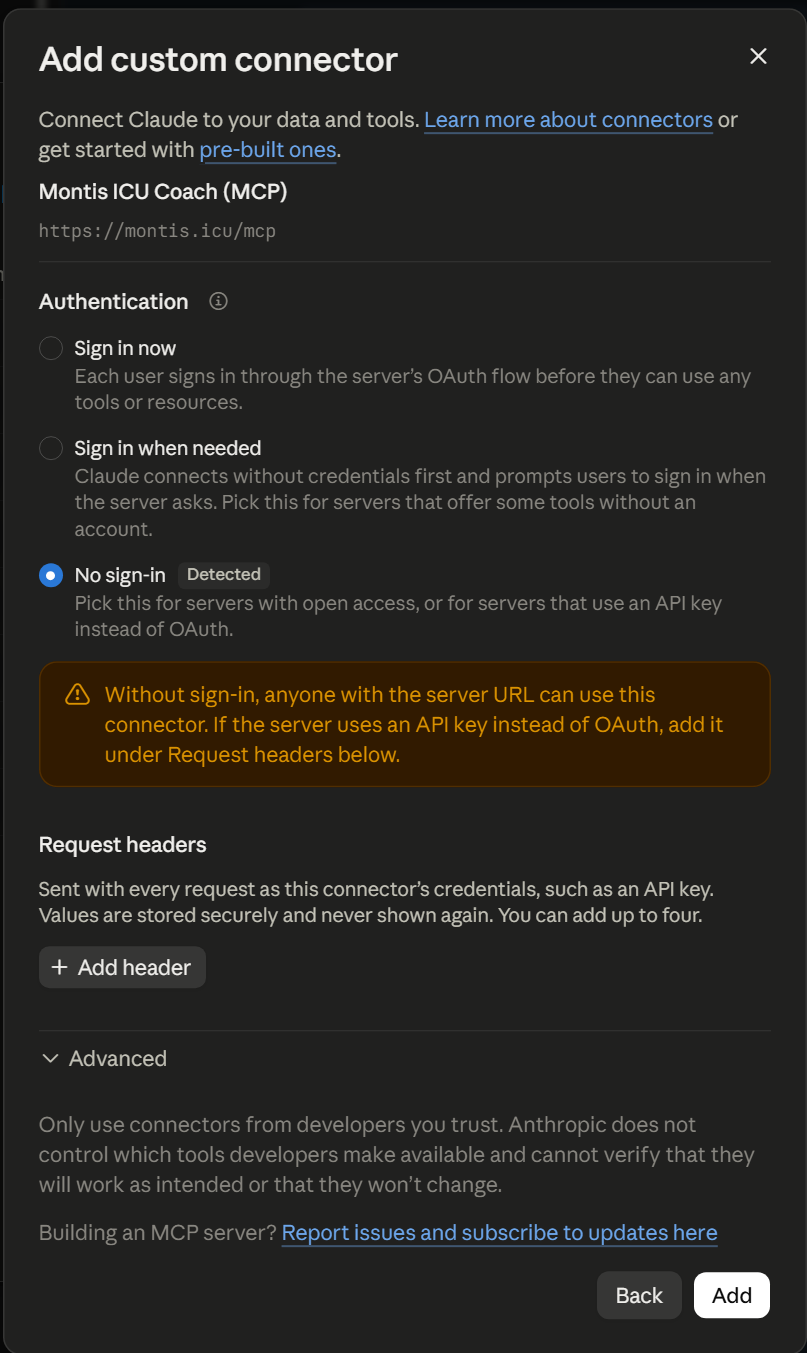
Claude often auto-detects No sign-in and shows a warning. Change Authentication to Sign in now — the Montis tools need you signed in.
No client ID is needed: leave the OAuth client
setting as it is and click Add. Claude identifies
itself to Montis automatically. Set Montis up earlier with the
client ID intervals-mcp? That keeps working.
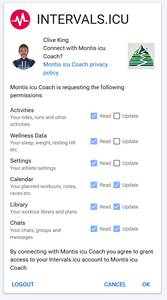
Claude will start the Montis OAuth flow.
Approve your Intervals.icu athlete connection when prompted.
Already signed in to Montis at montis.icu/app? This step is skipped — Claude connects straight through using your existing session.
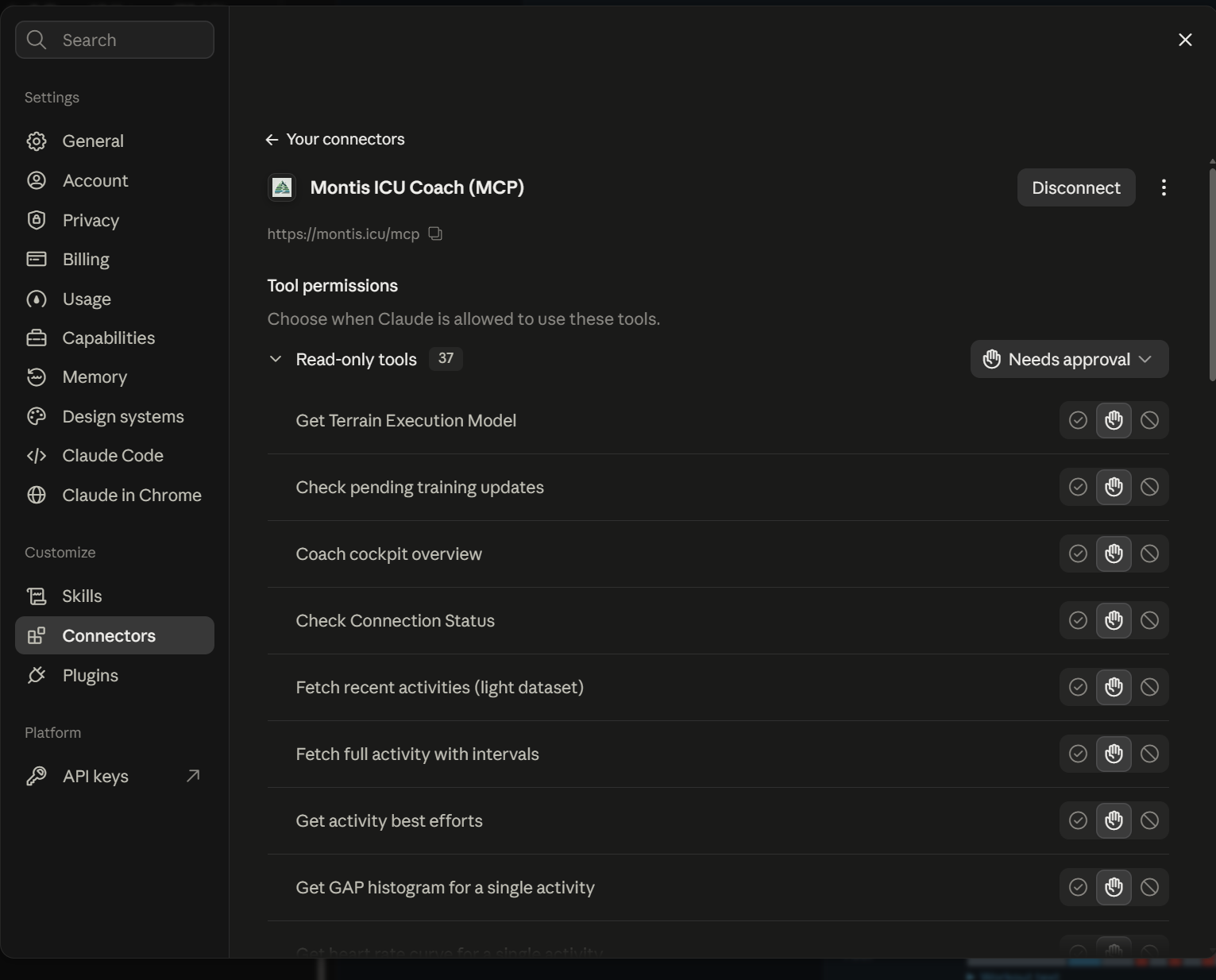
Once connected, the Montis tools appear under the connector's tool permissions — around 37 read-only tools, plus the calendar write tools which ask for approval before any change.
Skills give Claude the Montis coaching method and the structured plan builder on top of the raw tools. They are available on every Claude plan. First enable Settings → Capabilities → Code execution & file creation, then upload each skill under Settings → Capabilities → Skills.
/montis-coaching.
/montis-plan-builder.
Both skills use the Montis MCP connection from the steps above, so add the connector first.
With the skills installed, begin a message with
/montis-coaching or /montis-plan-builder
— or just ask in plain language. Claude uses the Montis tools and
the coaching method together.
/montis-coaching what can you do?
/montis-coaching run my weekly report
/montis-plan-builder build a 6-week plan to my next race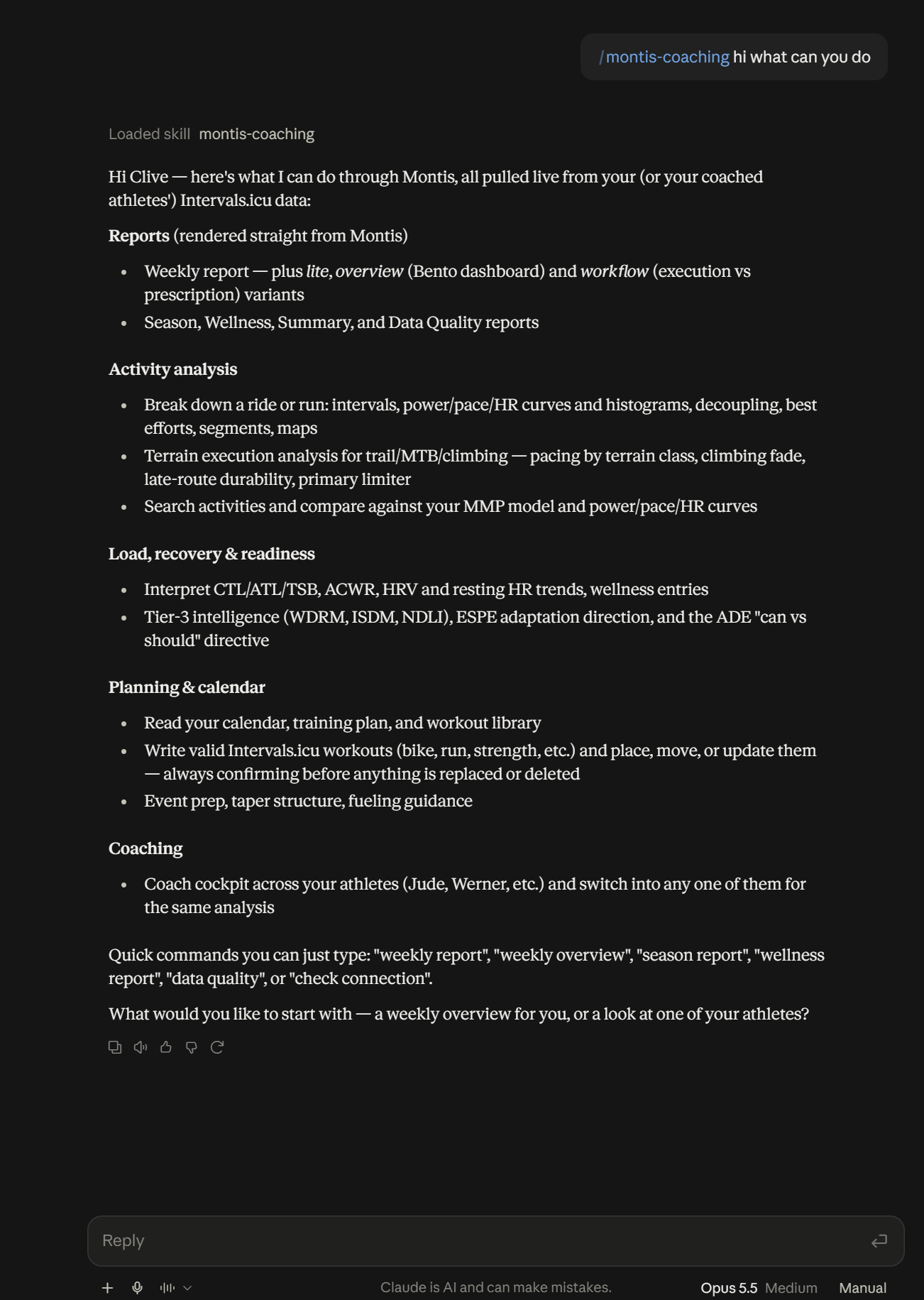
/montis-coaching to load the coaching skill.
You're connected
Start with a report, then use Montis to question the findings, understand what is changing and decide what should happen next.
Run a weekly report
How is my training progressing?
What should I focus on next week?