
Coach Roster and Acting as an Athlete
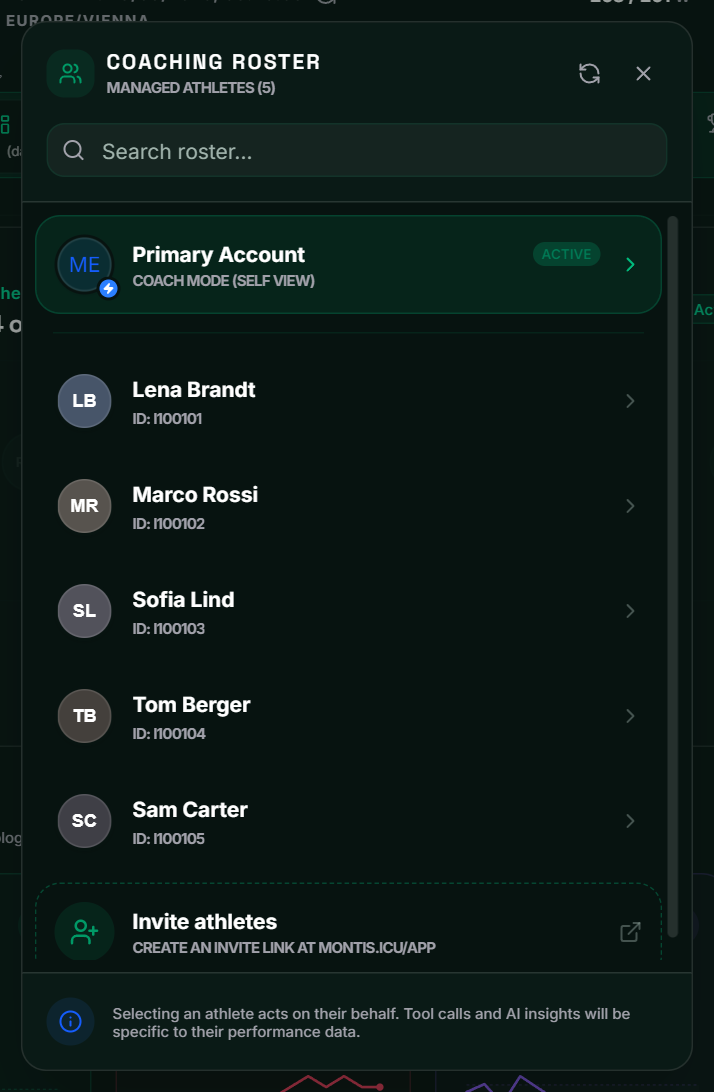
The Coach Roster lists the athletes who share their training with you. Pick one and the app switches to that athlete: you see their data, and the planning tools write to their calendar.
Open the roster
- In the sidebar, open Coaches → Coach Roster.
- The Coaching Roster panel lists your Managed Athletes. Search by name or ID in Search roster....
- The refresh icon loads the list again.
- Primary Account takes you back to your own data.
- Invite athletes opens the Montis hub at https://montis.icu/app, where you create invite links. See Coached Athlete Setup.
The Coaches menu is for Montis Subscribers. Without a Subscriber membership it shows a coffee cup instead, with a link to the membership.
Act as an athlete
- Click an athlete in the roster. The roster closes.
- The header shows Acting as: and the athlete's name.
- The app loads the athlete's latest reports and opens Horizon Dashboard → Coaching.
You can also open an athlete from the Coach Cockpit by clicking their photo or name.
To go back to your own data, press the X on the Acting as badge, or choose Primary Account in the roster. On a phone the badge is hidden; the roster marks the athlete you're working on as Active.
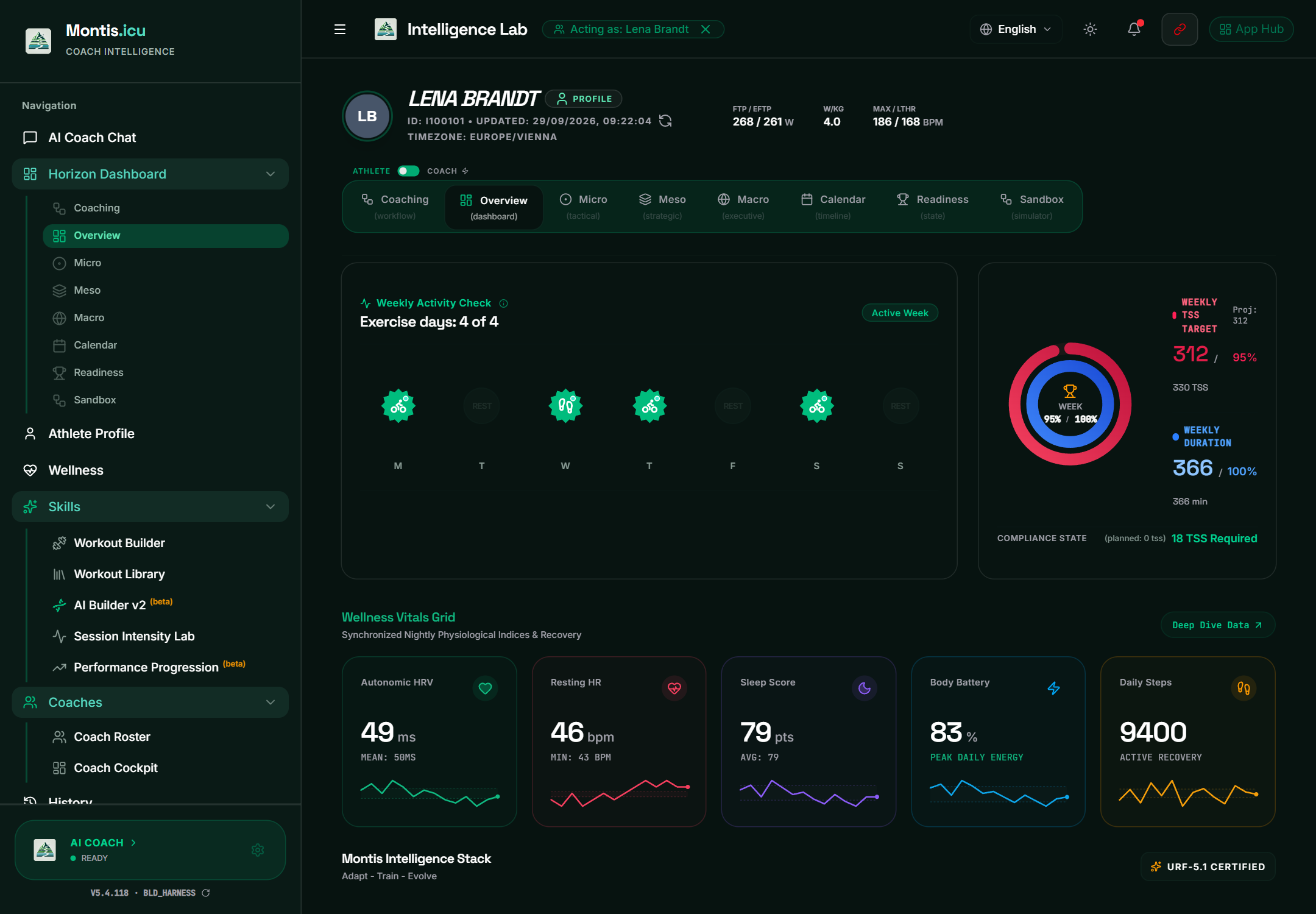
What switches to the athlete
| Where | What you see |
|---|---|
| Horizon Dashboard | Coaching, Overview, Micro, Meso, Macro, Calendar, Readiness and Sandbox, all for the athlete |
| Athlete Profile | Their biometrics, physiology and sport settings |
| Wellness | Their Physiology Drill-Down: HRV, sleep, resting heart rate and more |
| Skills | Workout Builder, Workout Library, AI Builder v2, Session Intensity Lab and Performance Progression |
| History | Their saved history |
| AI Coach Chat | A separate conversation for each athlete. The AI Coach knows you are their coach. |
The dashboard tabs
- Coaching: the athlete's week, with the email report. See Coaching Workflow and Email Report.
- Overview: this week at a glance: sessions done, weekly load against the target, and the wellness vitals.
- Micro: the current seven days in detail.
- Meso: roughly the last three months (the season).
- Macro: the last year.
- Calendar: planned workouts ahead. Drag a workout to move it; click it to edit or delete it.
- Readiness: how ready the athlete is for a chosen event.
- Sandbox: what-if simulations.
The ATHLETE / COACH switch
The switch sits above the dashboard tabs. COACH adds AI Coach panels to the tabs (for example Microcycle AI Coach, Forecast AI Coach and Readiness AI Coach) and switches some views to a coach layout. It doesn't change which athlete you're working on.
Changing the athlete's calendar
While you act as an athlete, these actions write straight to their Intervals.icu calendar:
- Workout Builder: COMMIT TO CALENDAR and SAVE CHANGES. DELETE WORKOUT, then CONFIRM DELETE, removes a workout.
- Calendar tab: dragging a workout moves it at once.
- AI Coach Chat: Add to Calendar on a suggested workout.
- AI Builder v2: committing a plan first removes the existing workouts on the dates of the weeks you selected, then writes the new plan.
- Coaching Workflow: Delete Target Event, then Confirm Delete, removes a target event.
- The AI Coach (the chat and the AI Coach panels) can add, change or delete workouts when you ask it to. It asks first: a card shows what will change and whose calendar, with Confirm and Cancel. Nothing changes until you press Confirm.
Changes show in the athlete's Intervals.icu straight away.