
Lactate Integration & Personalised Zone 2
Montis uses optional blood lactate measurements to refine your aerobic training zone, particularly Zone 2 around LT1. Lactate is not required. When usable lactate and power data are available, Montis can personalise the zone; otherwise it safely falls back to FTP-based zones.
Add the LT1 Fields in Intervals.icu
- Open Athlete → Settings using the gear icon.
- Scroll to Custom Fields.
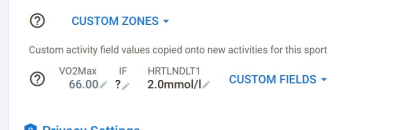
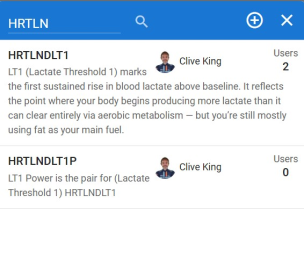
- Use the search icon and enter
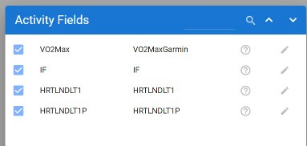
HRTLNDLT1. - Add both custom fields:
- HRTLNDLT1 — LT1 lactate concentration in mmol/L.
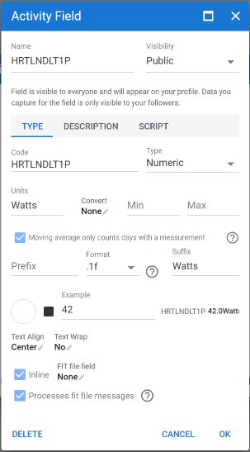
- HRTLNDLT1P — power recorded with the LT1 sample in watts.
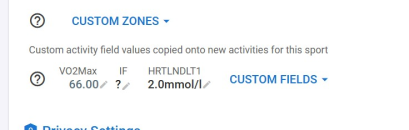
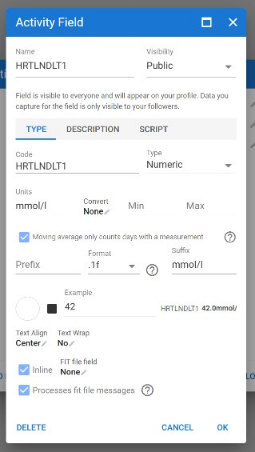
- Open each field with the edit icon and confirm its settings.
- Click OK, tick the checkbox to activate the field, and then click Close to save.
Enter Your LT1 and Power Values
- In Athlete Settings → Custom Fields, locate
HRTLNDLT1. - Enter your latest LT1 value in mmol/L, for example
2.0. - Enter the matching LT1 power in
HRTLNDLT1P, for example195watts. - Click Save.
A typical LT1 value is approximately 1.5-2.5 mmol/L. When no tested value is available, the guide uses 2.0 mmol/L as the standard aerobic-threshold starting point.
Apply the Fields to Activities
- Open a recent activity containing power data.
- Scroll to the bottom and open Custom.
- Enable
HRTLNDLT1andHRTLNDLT1Pfor the activity and future activities. - Refresh the page. The values should then populate automatically on new activities.
- When values do not appear, reload the activity from its source or temporarily edit an interval to force the activity fields to refresh.

Keep the Values Updated
Update HRTLNDLT1 and HRTLNDLT1P in Athlete Settings → Custom Fields whenever you complete a new lactate or endurance test.
The updated values flow into:
- Future activities.
- The Montis reporting pipeline.
- Personalised endurance-zone calibration.
FTP acts as the LT2 anchor, while HRTLNDLT1 and HRTLNDLT1P define the aerobic base used to shape your personalised Zone 2 range.
Where your personalised Z2 is used
When your latest weekly report contains a personalised Z2 range, Montis uses it to set the power targets of your endurance rides. This applies to new plans and to Montis library workouts that the builder adapts for you. Only Ride endurance steps change. All your other zones stay as they are.
Before you build a plan
- Make sure
HrtLndLt1has a value (see Enter Your LT1 and Power Values above) and your FTP is set in Intervals.icu. - Run your weekly report. The plan builders read the Z2 range from that report, so run it again after you change your lactate values or FTP.
- Build your plan.
How the range is set
The Montis engine works out the range from your FTP and your lactate values from the last 90 days:
| Your average LT1 lactate | Z2 starts at | Z2 ends at |
|---|---|---|
| Below 2.0 mmol/L | 70% FTP | 75% FTP |
| 2.0 to just under 3.0 mmol/L | 65% FTP | 75% FTP |
| 3.0 mmol/L or higher | 60% FTP | 75% FTP |
- The top of the range is always 75% FTP. A higher Below LT1 limit in Intervals.icu is not used as a target.
- When your lactate and power values line up well (a correlation of 0.6 or more), the report also marks your zones as lactate-calibrated and adds LT1 and LT2 power values. LT2 is your FTP.
- Intervals.icu stays the source of truth for your FTP and lactate values. Montis doesn't change them.
What changes in a workout
| Step | What Montis does |
|---|---|
| Endurance step with a range | Uses your full Z2 range |
| Endurance step with one target | Uses the middle of your Z2 range |
| Progressive endurance step | Spreads the steps across your Z2 range, never above the top |
| Recovery and easy spin | Stays below your Z2 range |
| Tempo, sweet spot, threshold, VO2 max, sprint, race | No change |
If your report has no personalised Z2, Montis uses the library workouts as written and doesn't guess a Z2 from FTP.
In the Montis App (AI Builder v2)
In AI Builder v2, the Personalised Z2 (LT1) setting switches to ACTIVE by itself when your report has a range. It shows an LT1 Calibrated badge and fills in From (% FTP) and To (% FTP) with the matching watts.
- Change the numbers to set your own range. The badge then shows Manual.
- Press Reset to LT1 to go back to the report values.
- Press ACTIVE to switch it OFF for this plan.
- With no report range, the setting starts OFF. You can switch it on and enter a range yourself.
See Workouts & AI Builder v2.
In ChatGPT and Claude
The Montis Plan Builder skill runs your weekly report first and then follows the same rules for Ride endurance steps.
Field Summary
| Field | Example | Unit | Purpose |
|---|---|---|---|
| VO2Max | 66 | - | Current aerobic capacity |
| HRTLNDLT1 | 2.0 | mmol/L | Aerobic threshold, approximately the top of easy endurance |
| HRTLNDLT1P | 195 | W | Power paired with the LT1 lactate value |
| FTP | 300 | W | Functional Threshold Power, used as the approximate LT2 anchor |
How Montis Interprets the Data
Montis summarises the available lactate observations and checks whether usable power pairs exist.
The guide's example contains one lactate point:
- Average lactate: 2.0 mmol/L.
- Latest lactate: 2.0 mmol/L.
- Range: 2.0-2.0 mmol/L.
- Samples detected: 1.
- Correlation with power:
r = 0.0. - Lactate-power model: FTP-based fallback.
With only one profile-default sample, there is no measurable lactate-power relationship. The system therefore retains FTP-based zones rather than treating the value as a measured lactate curve.
Threshold Calibration Example
| Threshold | Example value | Description |
|---|---|---|
| LT1 | 2.0 mmol/L | Aerobic threshold where lactate first rises above baseline; approximately 200 W in the example |
| LT2 | 4.0 mmol/L | Anaerobic threshold near maximal steady state; approximately 300 W in the example |
| Calibration source | FTP-based default | Standard defaults are used because no strong lactate-power relationship is available |
| Confidence | 0% | The example has no usable power correlation |
Interpretation
- The example indicates Z2-dominant aerobic-base training intended to improve LT1.
- The example fat-oxidation efficiency value of
0.59sits close to the stated fat/carbohydrate crossover area around LT1. - The example shows no threshold overload or excessive glycolytic work.
Coach Recommendations
- Refine LT1: Ride steadily for 30-40 minutes at approximately 200-220 W and monitor heart-rate stability and drift below 5%.
- Refine LT2: Complete short threshold intervals around 300 W and observe the heart-rate response. A rapid rise may indicate a slightly lower true LT2.
- Improve confidence: Add more paired lactate and power observations. The system can then replace FTP defaults with athlete-specific calibration when the data is sufficiently consistent.
Bottom Line
- Lactate data is optional.
HRTLNDLT1stores the lactate value.HRTLNDLT1Pstores the paired power value.- FTP remains the LT2 anchor.
- A single or unpaired value is summarised but does not provide a reliable lactate-power model.
- Multiple consistent lactate-power samples allow more precise Zone 2 calibration.