
Session Intensity Lab Analysis Email
Ask the AI Coach to analyse one of the athlete's activities in the Session Intensity Lab, then send the analysis to the athlete as an email with your branding.
Analyse an activity
- Act as the athlete. See Coach Roster and Acting as an Athlete.
- Open an activity: press Analyse next to a completed workout in the Coaching Workflow, or open Skills → Session Intensity Lab and pick one from the list.
- Open the AI Coach tab (the last tab).
- Choose a suggestion such as ANALYSE ACTIVITY, or type your question. Here the AI Coach doesn't start by itself.
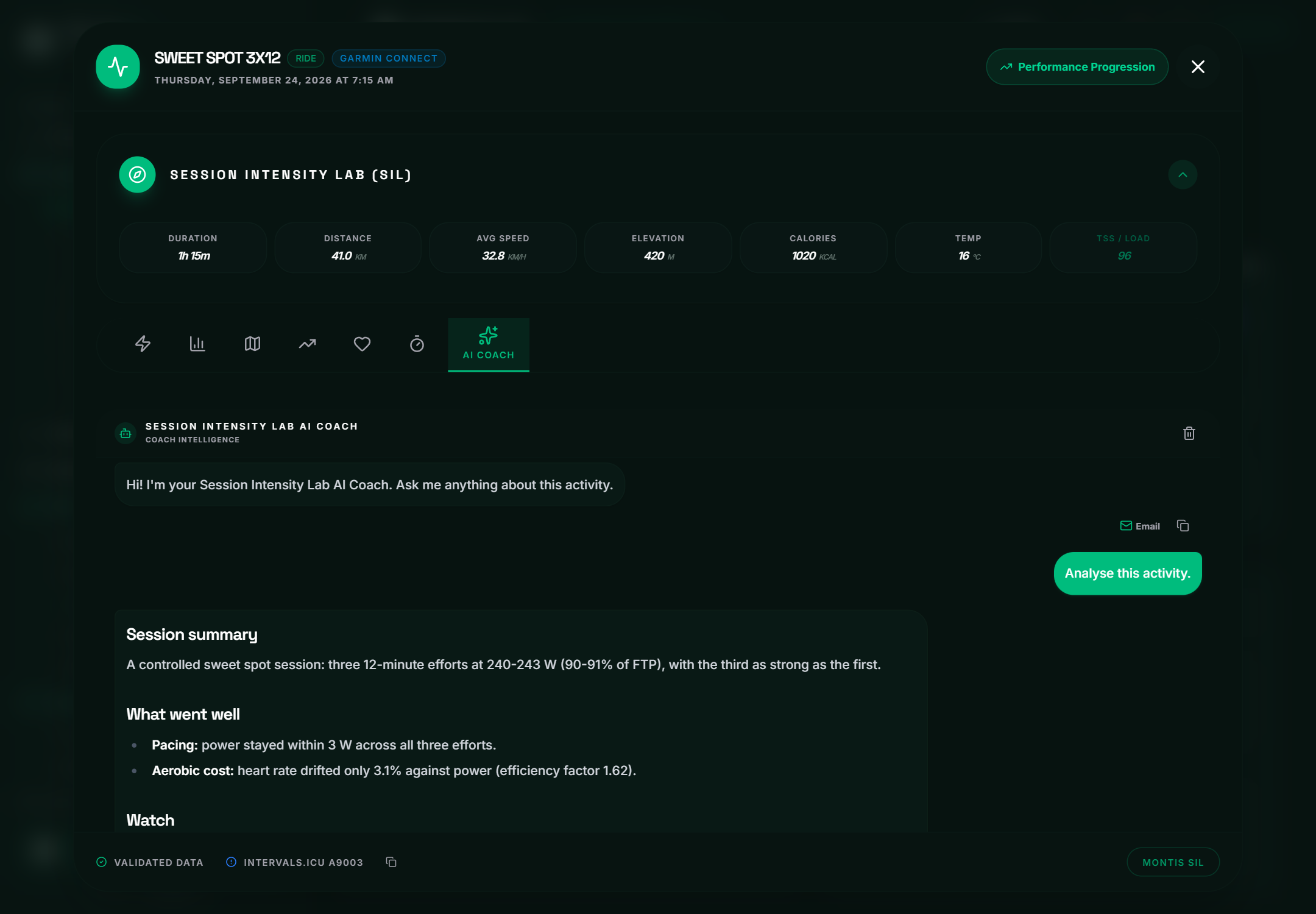
The AI Coach sees the activity's thresholds, power, heart rate and load; the power, heart-rate and pace curves; segments, intervals and repeatability; and the zone histograms.
The other tabs show the activity itself: Metrics, Intensity (zones), Route Lab (the map), Power Curve, HR Curve, Pace Curve, Segments (Strava activities only) and Intervals.
Email the analysis
- Under the answer you want to send, press Email. This only shows while you act as an athlete.
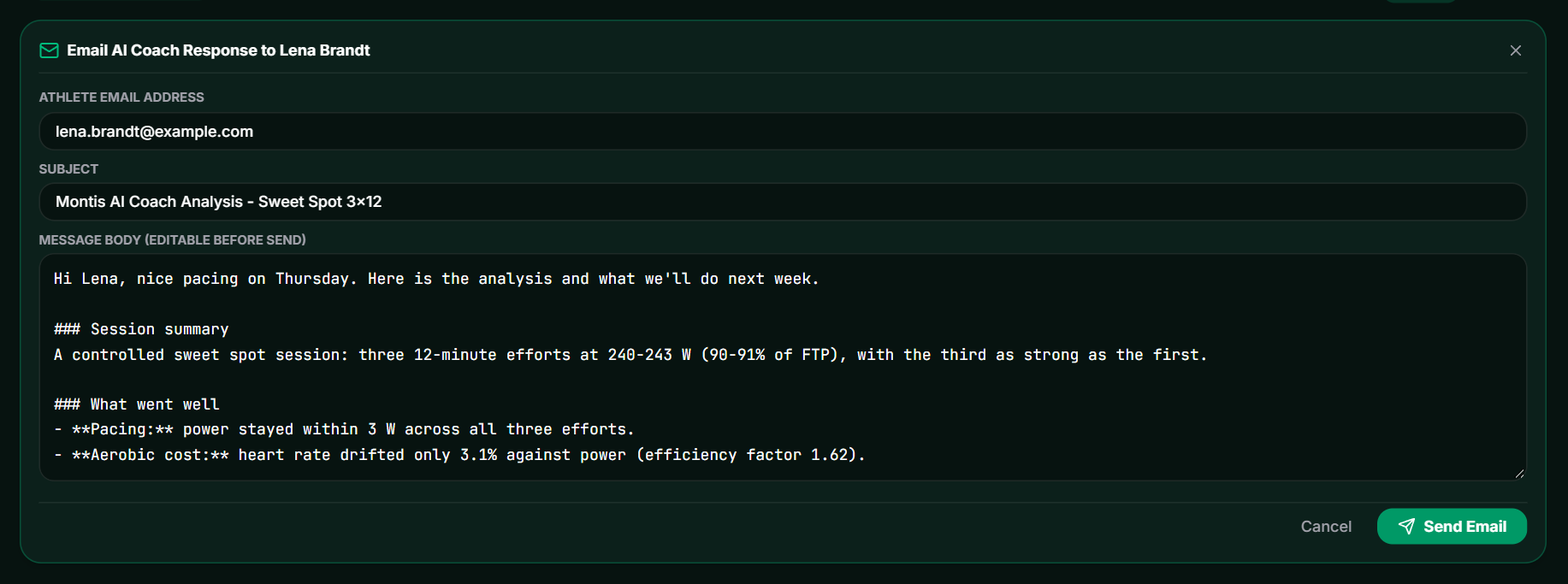
- Email AI Coach Response to [athlete] opens with:
- Athlete email address, filled in for you.
- Subject, for example Montis AI Coach Analysis - Sweet Spot 3x12.
- Message body (editable before send): the AI Coach's answer. Add your own note or change anything.
- Press Send Email.
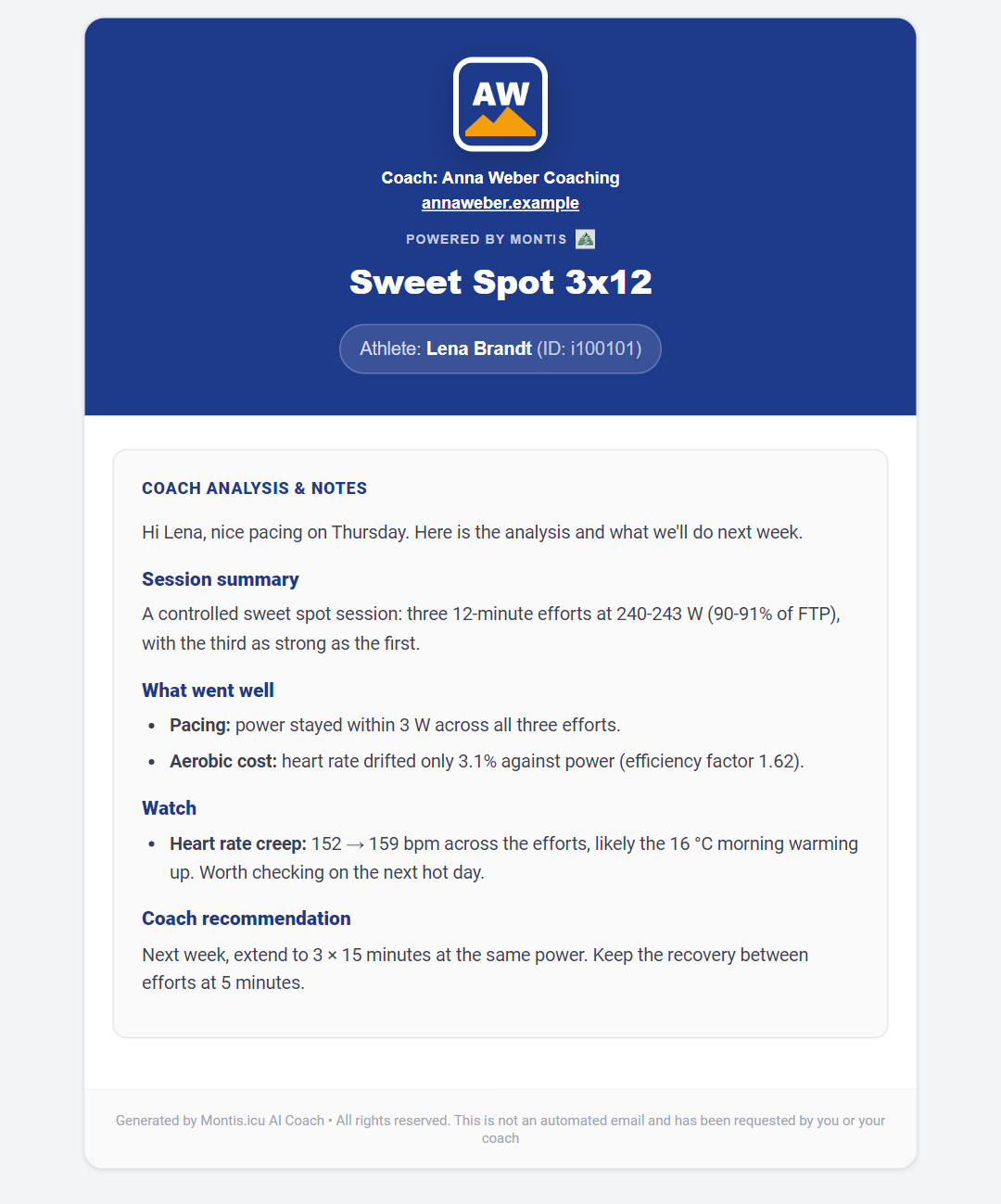
The athlete gets an email with your branded header, the activity name, the athlete, and a Coach Analysis & Notes box with the message you sent.
- Unlike the workflow report, you don't get a copy.
- The same address rules apply: your own Intervals.icu email, or the Intervals.icu email of an athlete you coach.
- The email comes from noreply@montis.icu, so ask athletes to reply to you directly.