
Coaching Workflow and Email Report
The Coaching Workflow puts one athlete's week on one page, from what they did against the plan to what comes next. You can email it to the athlete as a report with your branding.
Open it
- Act as the athlete. See Coach Roster and Acting as an Athlete.
- Open Horizon Dashboard → Coaching. Subscribers land here when they pick an athlete.
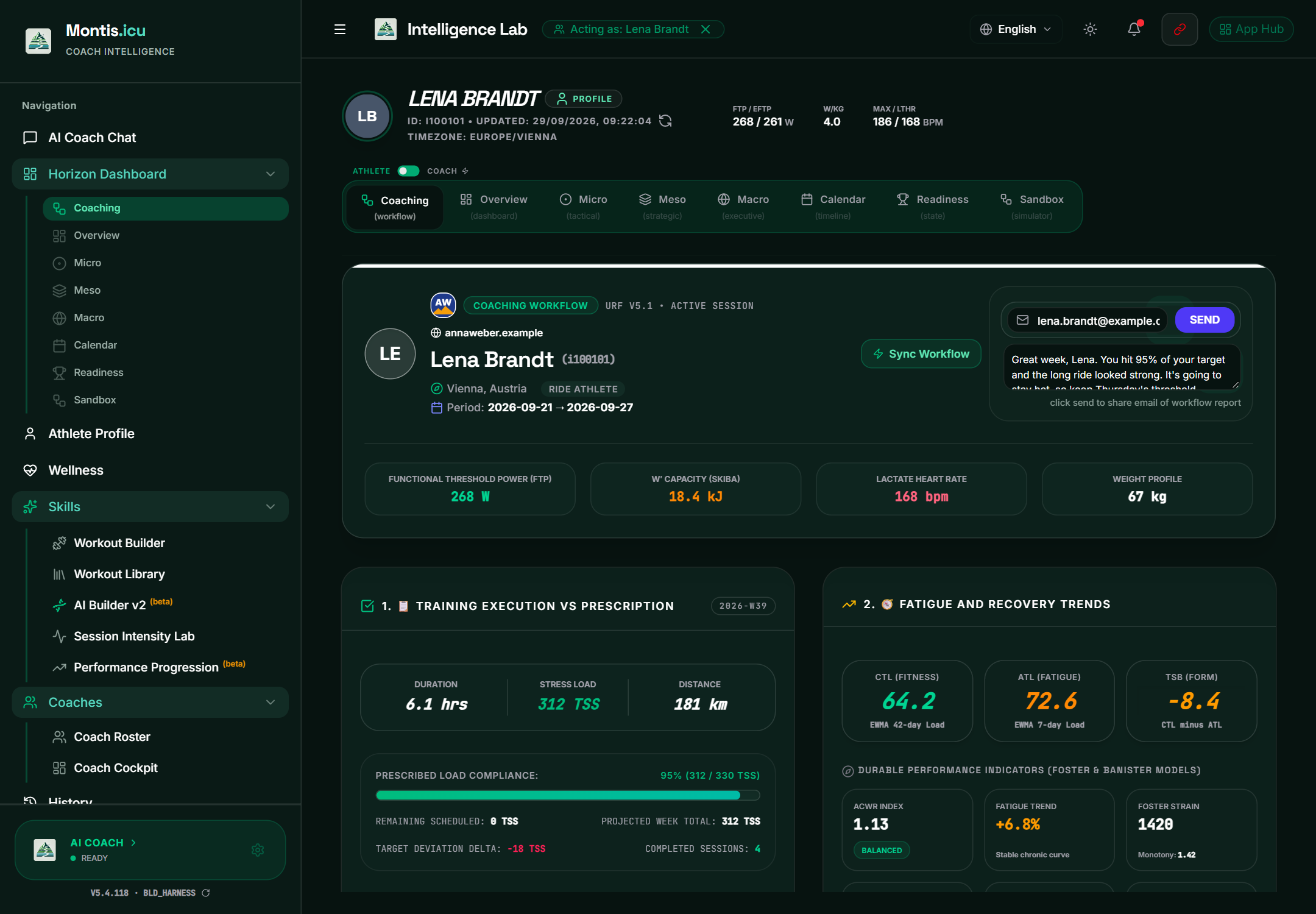
The header shows the athlete, the report period, your logo and website, and the athlete's FTP, W′ (anaerobic capacity), lactate threshold heart rate and weight. Sync Workflow reloads the athlete's latest weekly and wellness reports.
The six sections
| Section | What it shows |
|---|---|
| 1. Training Execution vs Prescription | Hours, TSS and distance; compliance with the weekly target (green from 85% to 115%); remaining and projected TSS; the planned weeks; completed workouts, each with Analyse (opens the Session Intensity Lab); and planned sessions. |
| 2. Fatigue and Recovery Trends | CTL, ATL and TSB; ACWR, fatigue trend, Foster strain and monotony, and stress tolerance; the intensity distribution (Seiler week type, Treff polarization index and ZQI, with Treff for the athlete's main sport and for all endurance); metabolic indicators; the week's daily load; a 14-day fatigue forecast; and ride fatigue resistance. Hover or tap the ⓘ next to a figure for what it means and how it's calculated. |
| 3. Athlete Readiness | Readiness balance; the engine's decisions and interventions; the decision context and phase alignment; training guidelines and limits; and target events. |
| 4. HRV / Wellness | HRV (latest, 42-day mean and ratio), resting heart rate, sleep, the watch list and positive markers, and environmental stressors. |
| 5. Weekly Performance Progression | Adaptation state, power-curve changes, anaerobic repeatability, durability and neural load (WDRM, ISDM and NDLI), lactate thresholds (LT1 and LT2) and the recent training phases. |
| 6. Future Periodisation | The coming phases with projected hours, TSS, CTL, ATL and TSB. Change Periodisation opens AI Builder v2. |
Send the email report
The email box is at the top right of the Coaching Workflow.
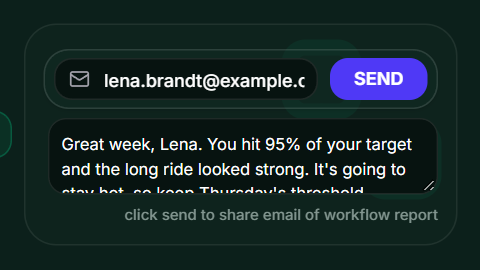
- Check the address. Montis fills in the athlete's email. You can type over it, but only with an address Montis allows (see below).
- Add a comment if you like. It goes at the top of the email as Coach Commentary.
- Press SEND.
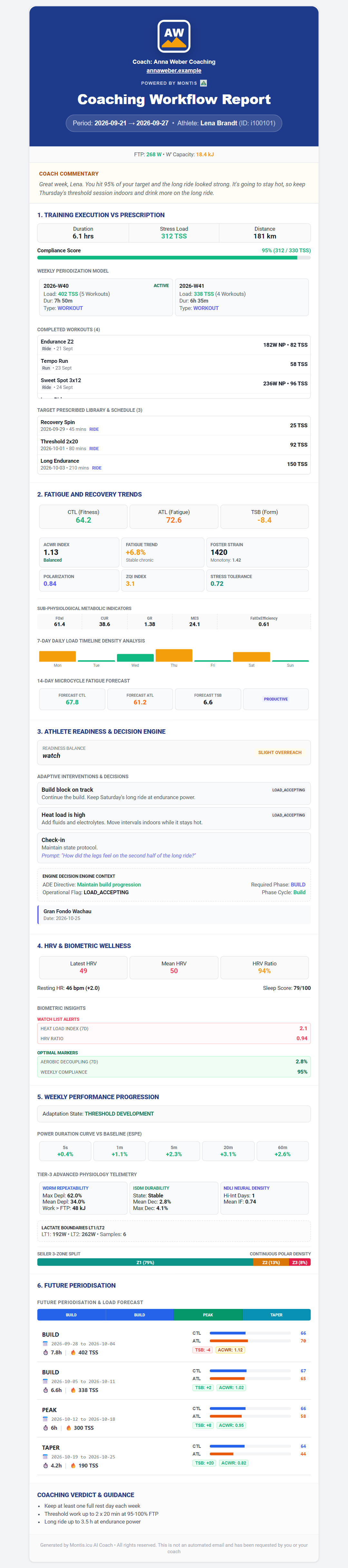
The athlete gets the Coaching Workflow Report:
- A header in your brand colour, with your logo, name and website. Without a brand colour it's Montis green.
- The period and the athlete, then FTP and W′.
- Your Coach Commentary.
- Sections 1 to 6, then Coaching Verdict & Guidance.
- You get a copy (CC).
- The subject is MONTIS COACHING WORKFLOW REPORT - [ATHLETE].
- The email comes from noreply@montis.icu, so ask athletes to reply to you directly.
- Montis only sends to your own Intervals.icu email, or to the Intervals.icu email of an athlete you coach, as Montis knows it. Use one address.
- If any address is not allowed, nothing is sent. You see Failed to send email with the refused address, and SEND turns red and shows FAILED.
- The email always uses your current branding. Set your logo, website and brand colour in the hub at https://montis.icu/app (Coaching tab, Your coach branding).